

Telephony
Overview
Section titled “Overview”This guide will walk through how to purchase or import a number from Twilio.
Import a number
Section titled “Import a number”Prerequisites
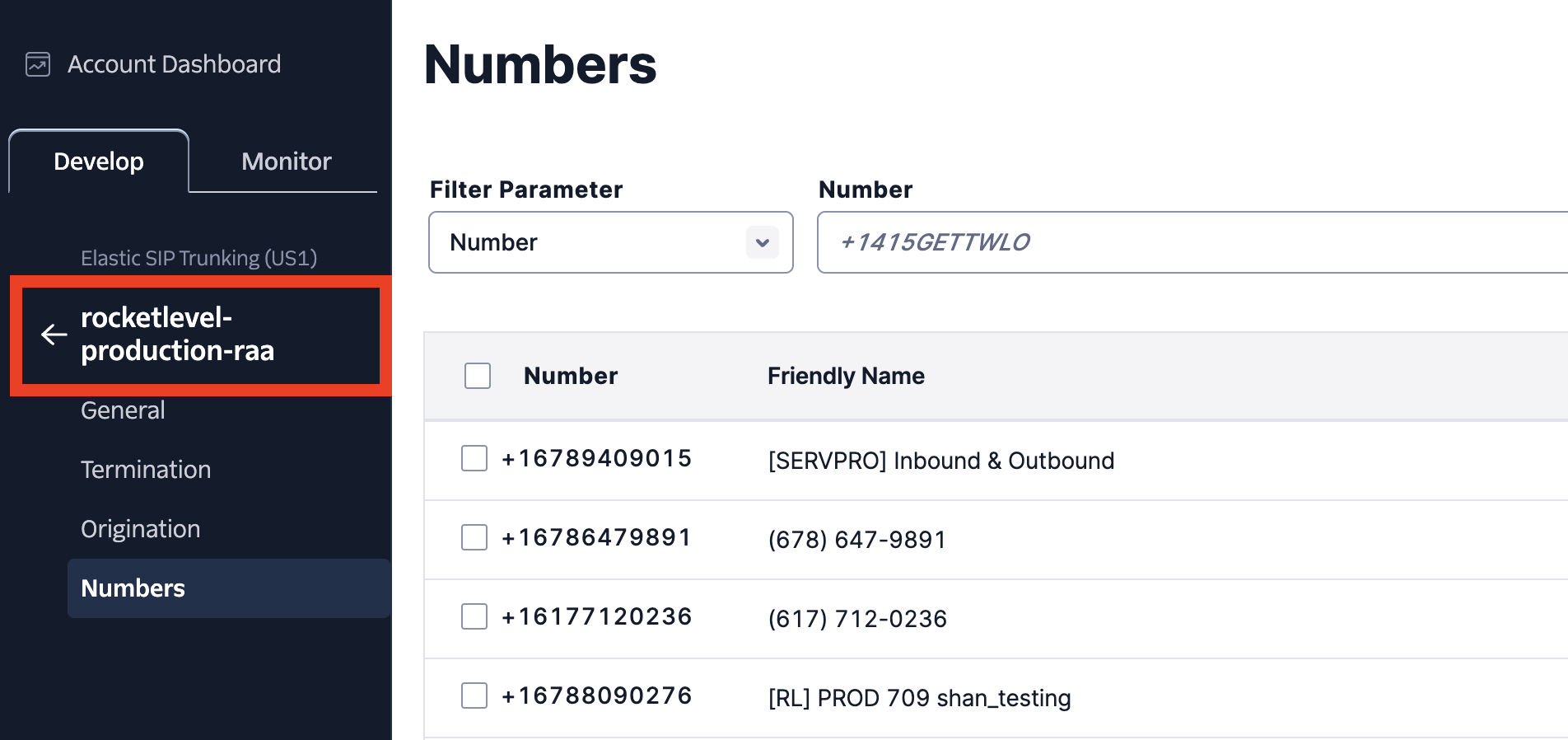
Section titled “Prerequisites”If you already purchased a number directly on Twilio, make sure it’s assigned to our app’s dedicated SIP Trunk “rocketlevel-production-raa”. The number should be displayed in here:
How to import
Section titled “How to import”- Log in to Admin Portal
- Navigate to Rocket AI Agent > Phone Numbers
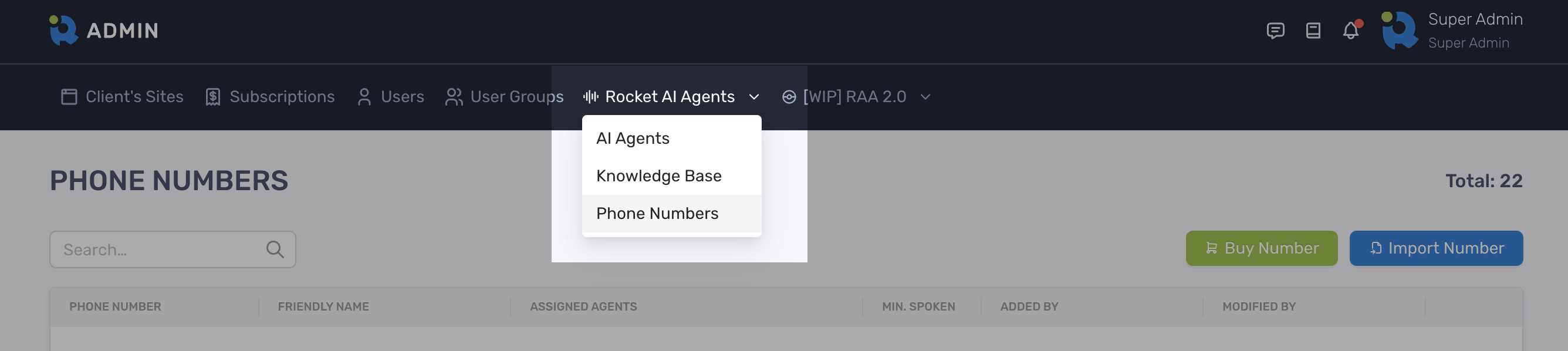
- Click the Import Number button
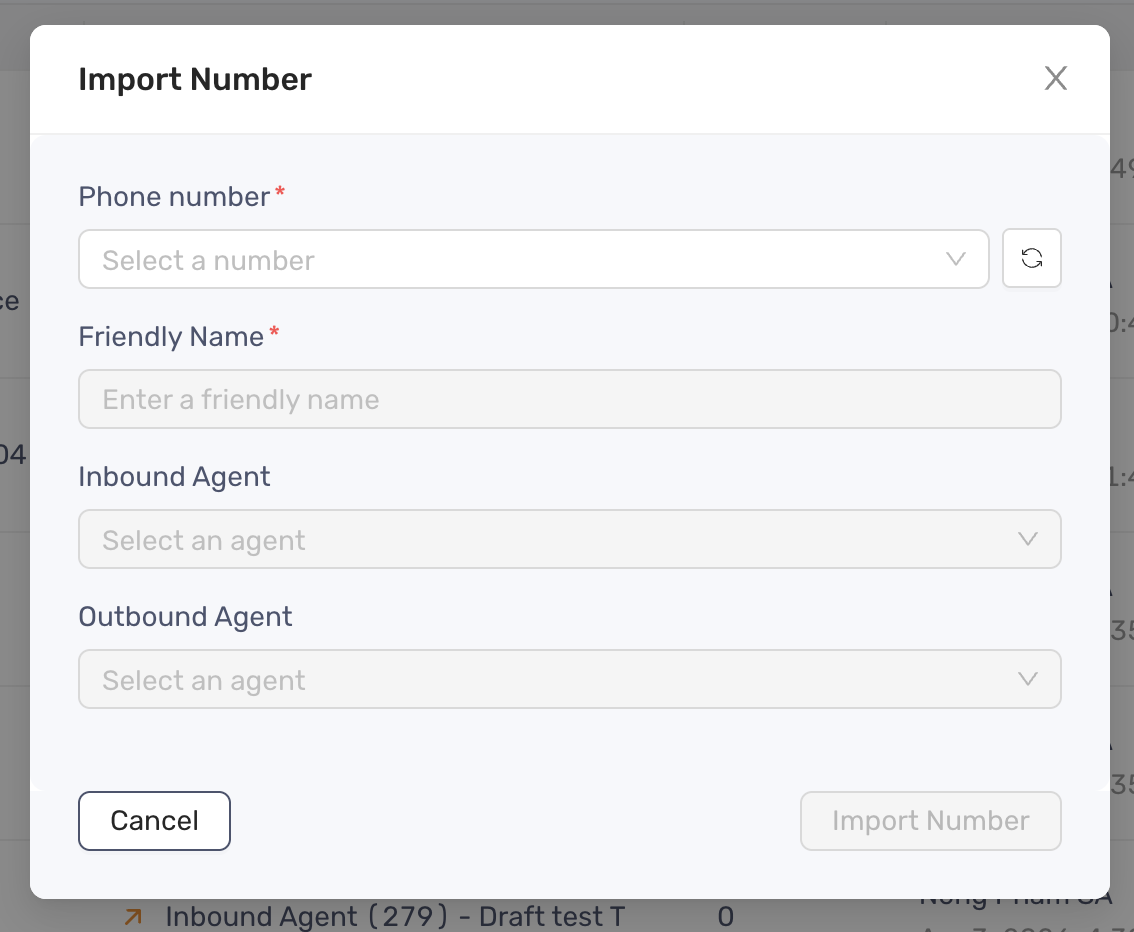
- Select a number from the dropdown list
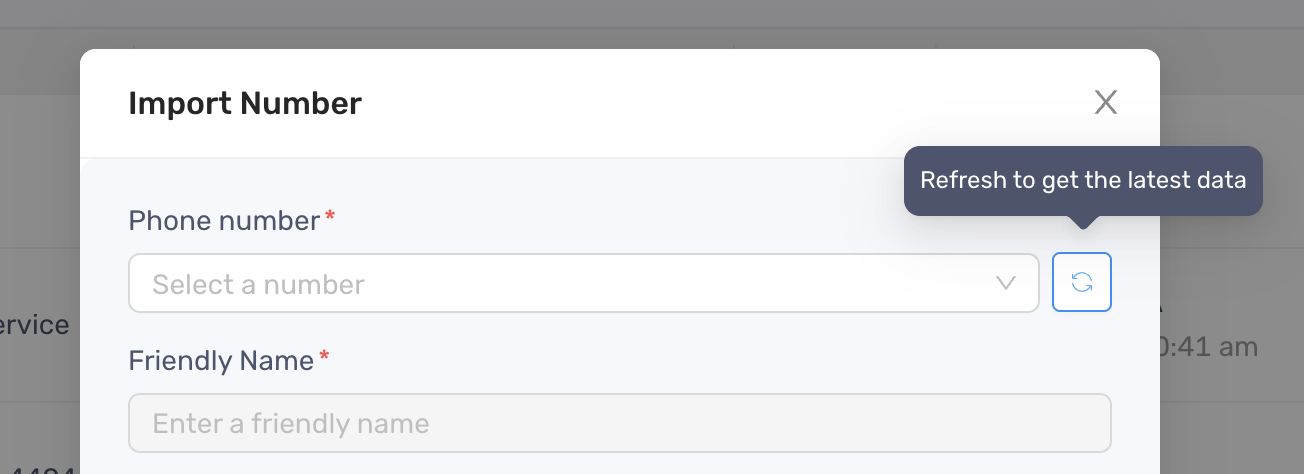
- If you don’t see the number, click the Sync icon button to force a manual sync from Twilio to the app
- Enter a Friendly Name for easy tracking
- Select Inbound Agent and/or Outbound Agent to bind the number to
- Click Import Number button to finish
Buy a number
Section titled “Buy a number”- On the Phone Numbers screen, click Buy Number button
- Search for a number
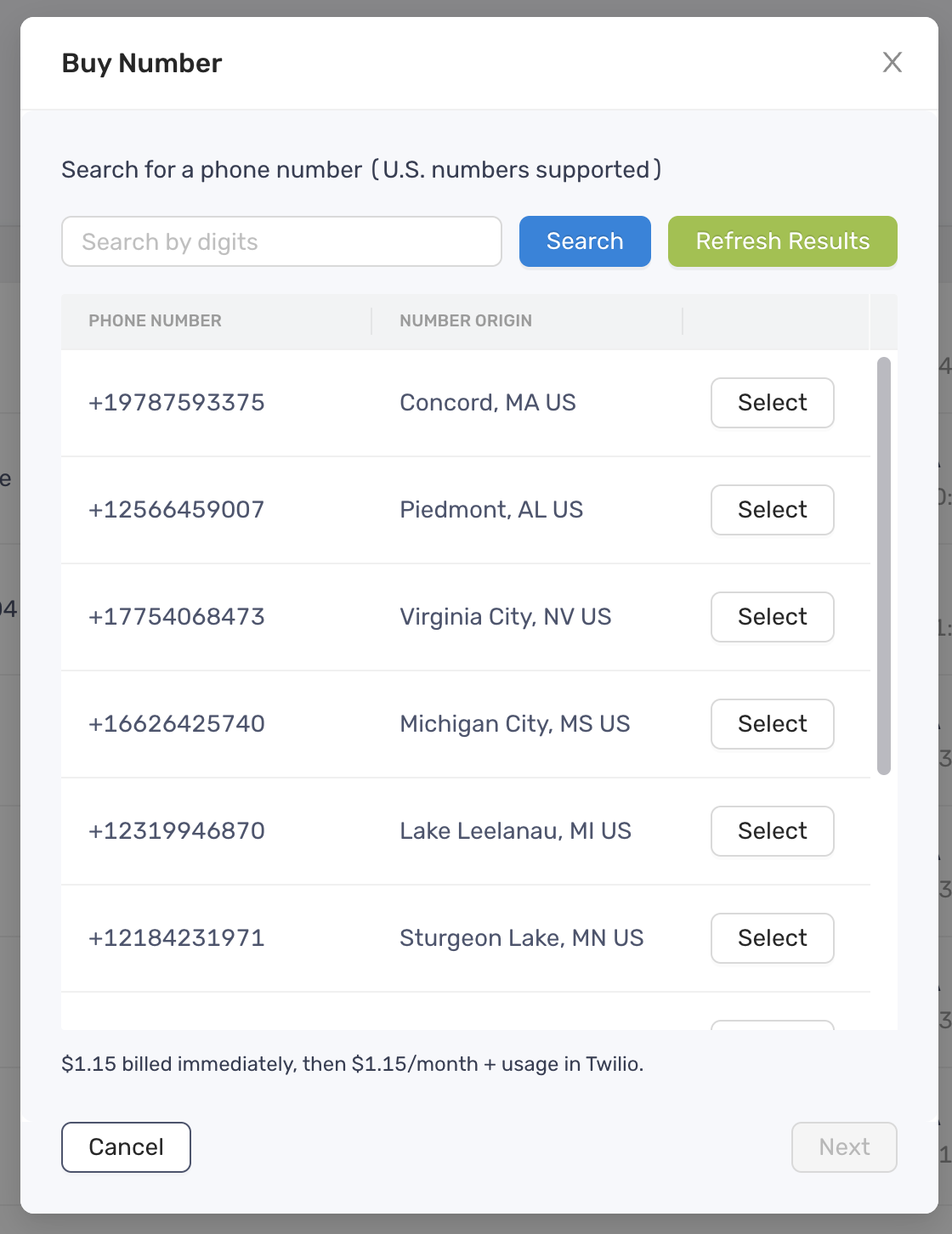
- Select a number
- Click Next button
- Enter a Friendly Name for easy tracking
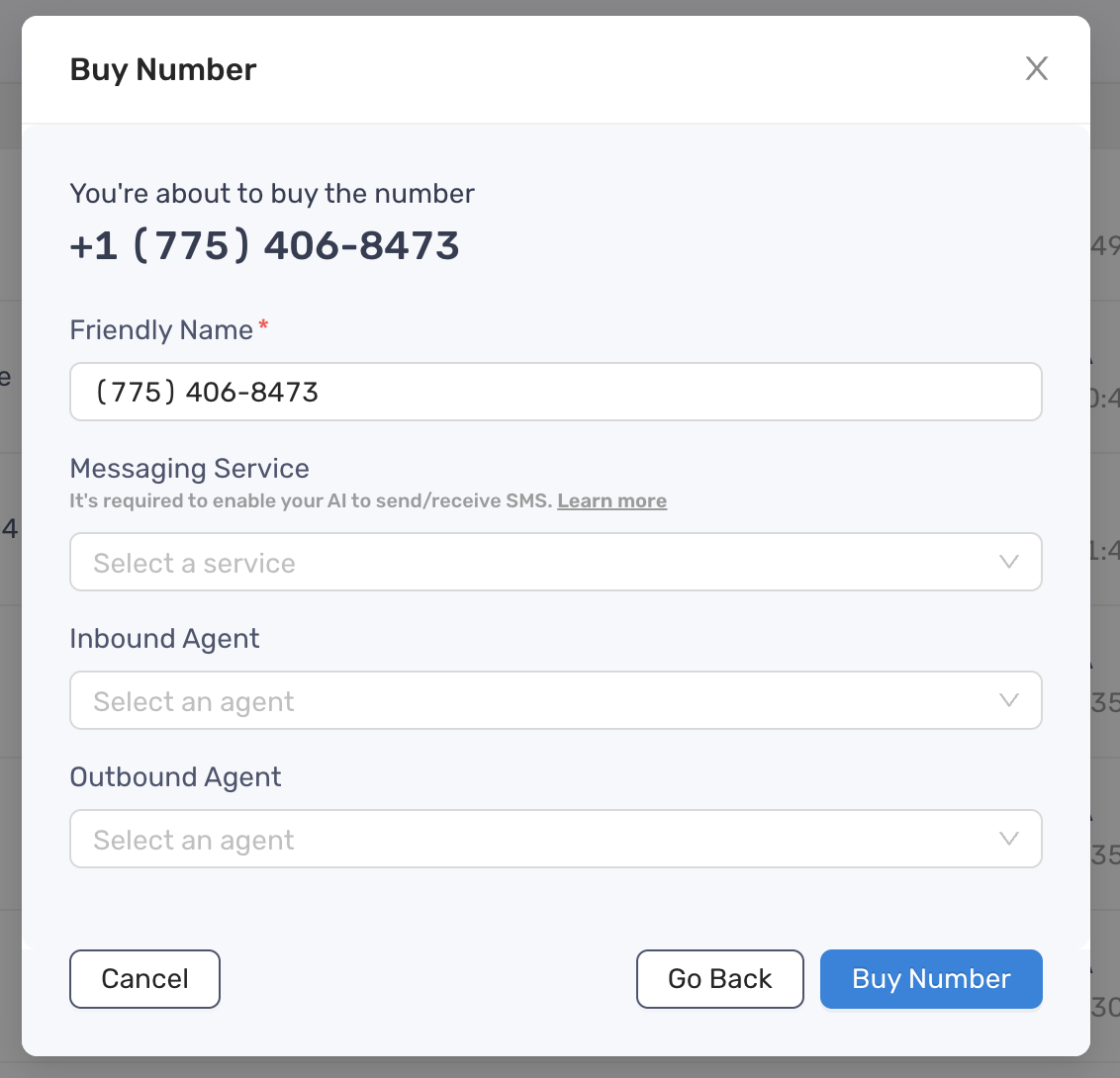
- Select a Message Service for the number to be assigned to
- The Messaging Service is obligatory for sending SMS without being marked as spam
- Select Inbound Agent and/or Outbound Agent to bind the number to
- Click Buy Number button to finish
The purchased number will be displayed in Twilio, and automatically assigned to the “rocketlevel-production-raa” trunk. All the charges are handled by Twilio.
How to bind a number to your agent
Section titled “How to bind a number to your agent”If you already purchased a number directly on Twilio, make sure it’s assigned to our app’s dedicated SIP Trunk “rocketlevel-production-raa”. The number should be displayed in here:
- On the Agent Edit screen, navigate the Phone Numbers section on the right-hand side
- Click the Add Phone Number button
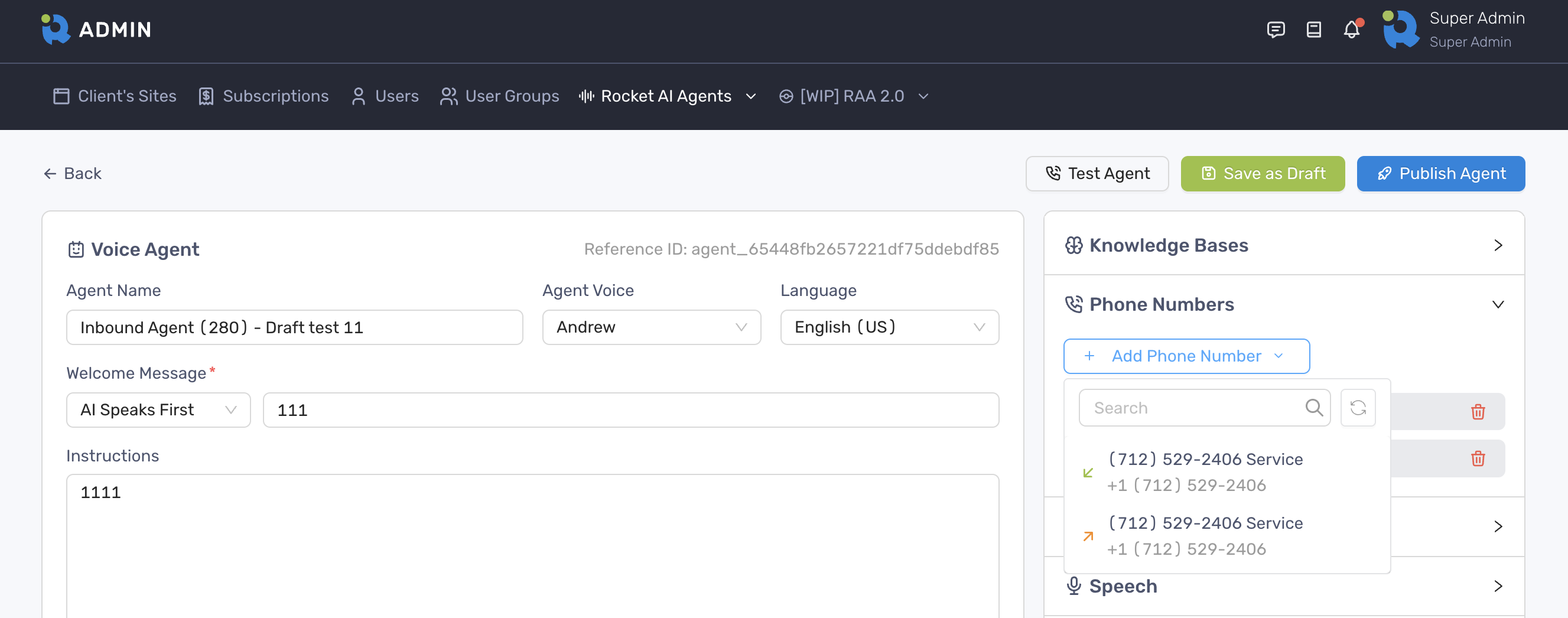
- Select the number you want to link
- Click Save As Draft or Publish Agent button to save the linkage