

Editing & Removing Team Member
Get your dream team on board to help you manage social accounts, and achieve all social media engagement goals together.
Edit the team member’s permissions
Section titled “Edit the team member’s permissions”- Locate the Team section on the General Settings page
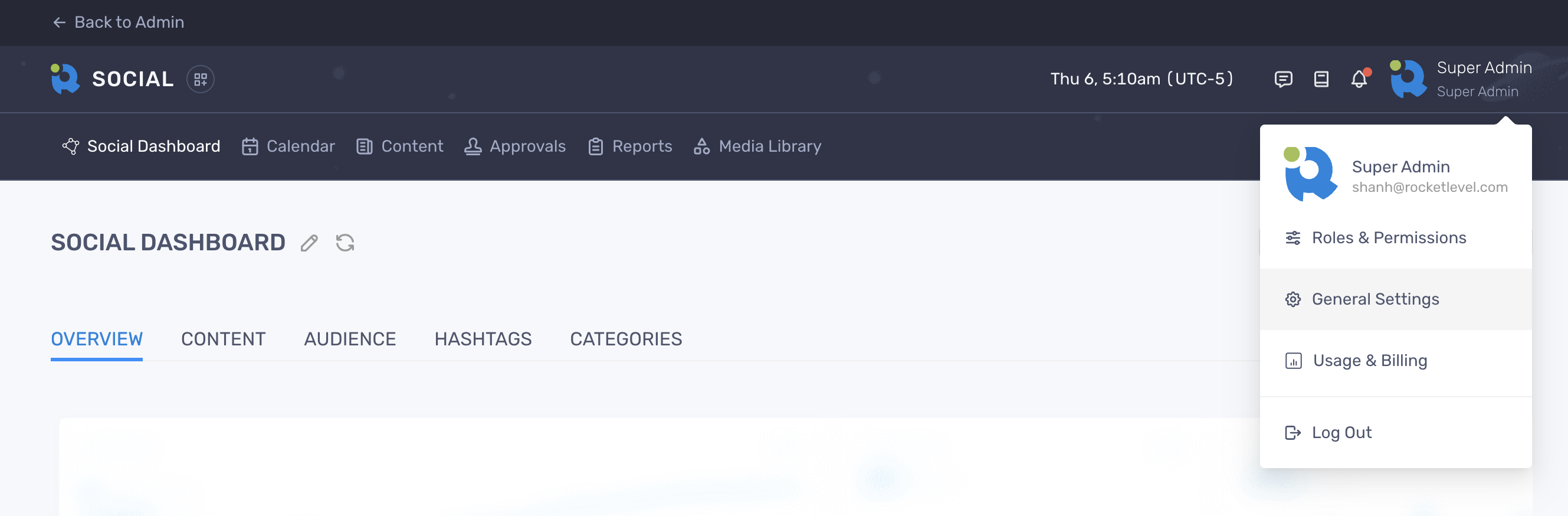
- On the left-hand side, you can change a member’s permissions by checking/un-checking boxes on the Manage Only and Approve Only columns
- Click “Save Changes” to finish
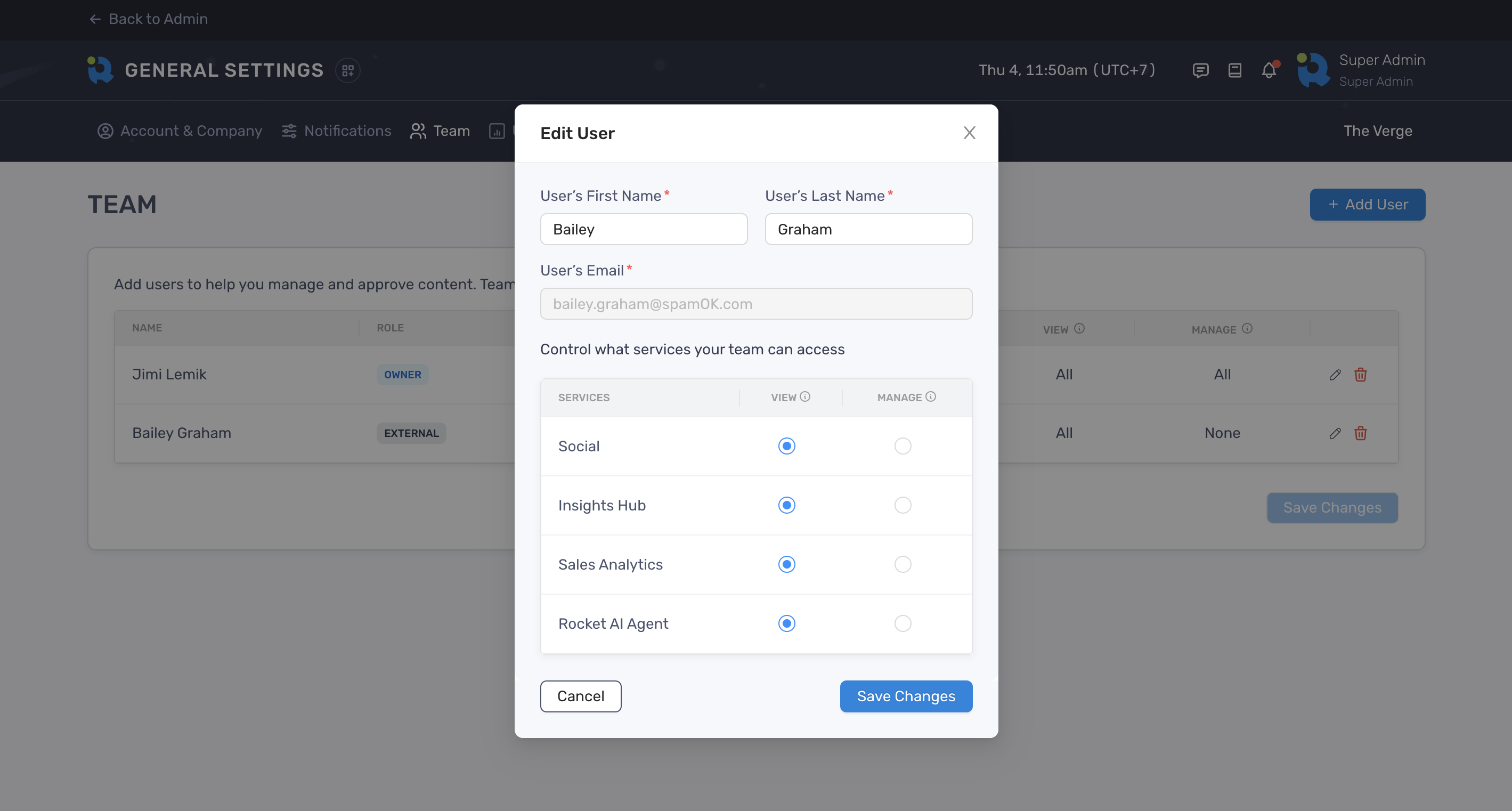
- Change the permissions you wish to grant to the user.
- Click “Save Changes” to finish
The changes will be applied immediately after the external user refreshes the page.
Remove a team member
Section titled “Remove a team member”- Locate the Team section on the General Settings page
- On the left-hand side, navigate to the member you want to remove and click “Remove” at the last column
- Click “Remove” to confirm your action and the member will no longer have access to RocketLevel.