

Media Library
Ensure the Social service is enabled, and the media storage varies with subscriptions.
Access the Media Library page
Section titled “Access the Media Library page”Go to Social page and select Media Library on the top menu
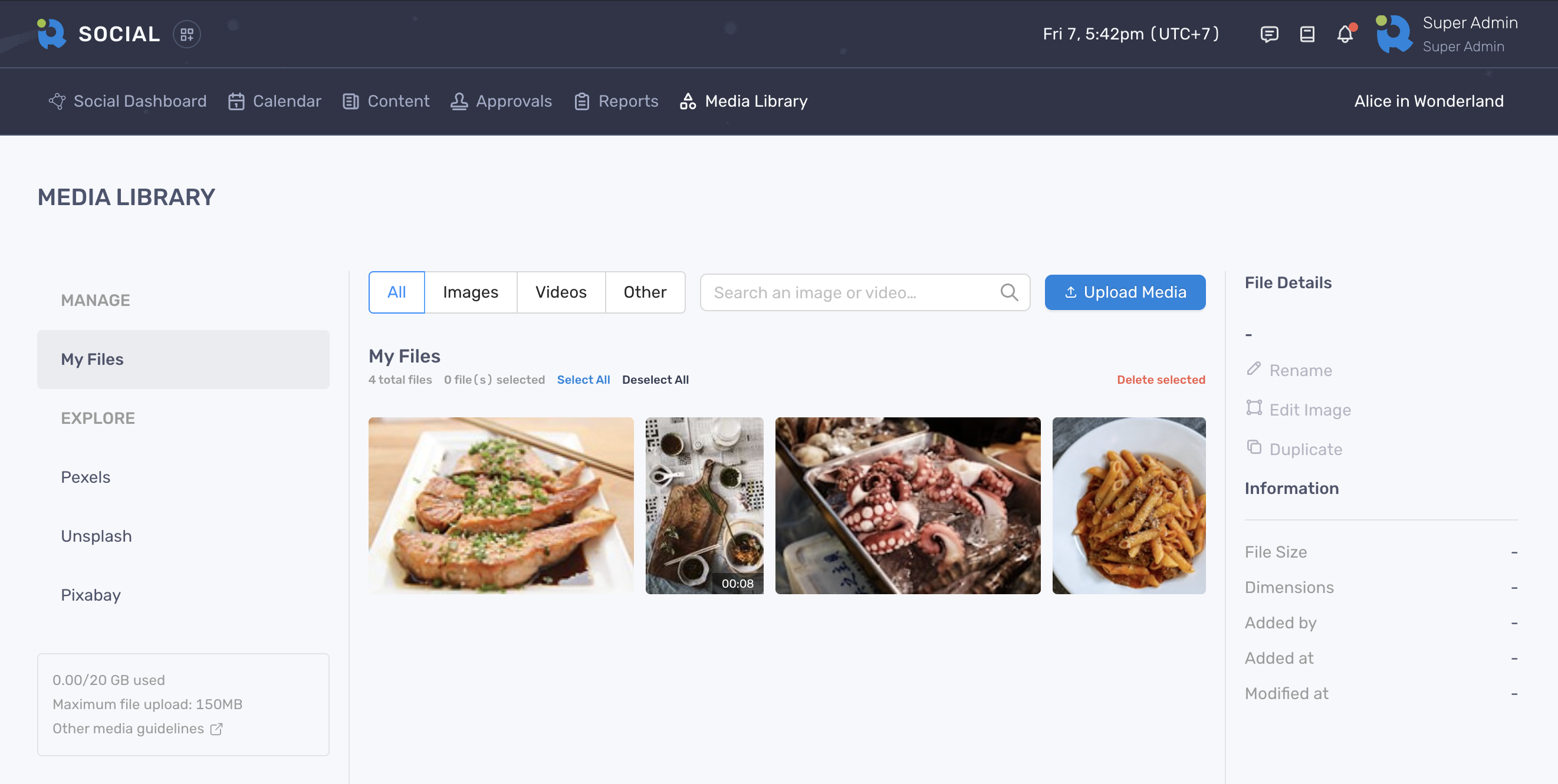
Upload from local device
Section titled “Upload from local device”- Once in the Media Library, click “Upload Media”
- On Upload Media, click “Browse”
- Navigate to your desired file(s) and select them for upload
- Click “Upload” button
- The files will be uploaded to the Media Library
Save files from Stock Photo Platforms
Section titled “Save files from Stock Photo Platforms”- In the Media Library, you’ll see the EXPLORE section including integrated stock photo platforms (Pexels, Unsplash, Pixabay)
- Click the platform’s name and browse the photos/videos using the filter tabs next to the search field
- Select the image or video you want to use
- Click “Save To My Files” to add it to your Media Library
Images saved from Unsplash will automatically be resized to 1280px wide to save storage and better performance.
Use image or video in social content
Section titled “Use image or video in social content”- While creating or editing social content, look for the Add Images/videos icon.
- Click on the icon to open Add Images/Videos modal
- You’ll see 2 sections:
- My Files: This shows all the files you uploaded from your device or Google Drive.
- Explore: This displays all the free stock photos you added from Pexels, Unsplash, and Pixabay.
- Browse through the available media and select the file(s) you want to include in your social content.
- Select files and click “Add To Content” button
Delete images and videos
Section titled “Delete images and videos”- In the Media Library, locate the file you want to delete. You can browse through uploaded files or use the search bar
- Select a file or multiple files
- Under the Upload Media button, look for the “Delete selected option”
- A confirmation window will appear to prevent accidental deletion. Click “Delete” to confirm.
Edit an image
Section titled “Edit an image”- In the Media Library, locate the file you want to edit. You can browse through uploaded files or use the search bar
- On the File Details section, look for the Edit Image option
- A popup will appear with following editing functionalities:
- Adjust: Adjust the image size and crop unwanted areas to achieve the desired composition
- Finetune: Fine-tune aspects like brightness, contrast, saturation, and sharpness for a more polished look
- Filters: Apply various filters to enhance the image’s appearance (e.g., black and white, vintage, sepia)
- Annotate: Add text or shapes to your image
- Resize: Adjust the size of your image proportionally
- Once you’ve made your desired adjustments, click “Save” button to confirm the changes.
Duplicate an image or video
Section titled “Duplicate an image or video”- In the Media Library, locate the file you want to duplicate. You can browse through uploaded files or use the search bar
- On the File Details section, look for the “Duplicate” option
- New file is created with the prefix “Copy - [file-name]“
Rename an image or video
Section titled “Rename an image or video”- In the Media Library, locate the file you want to rename. You can browse through uploaded files or use the search bar
- On the File Details section, look for the “Rename” option
- A popup will appear with text field for you to enter your desired name
- Click “Confirm” to finish