

Reports
The Reports tab has the built-in reporting feature in which you can generate reports then share them with your teammate or client.
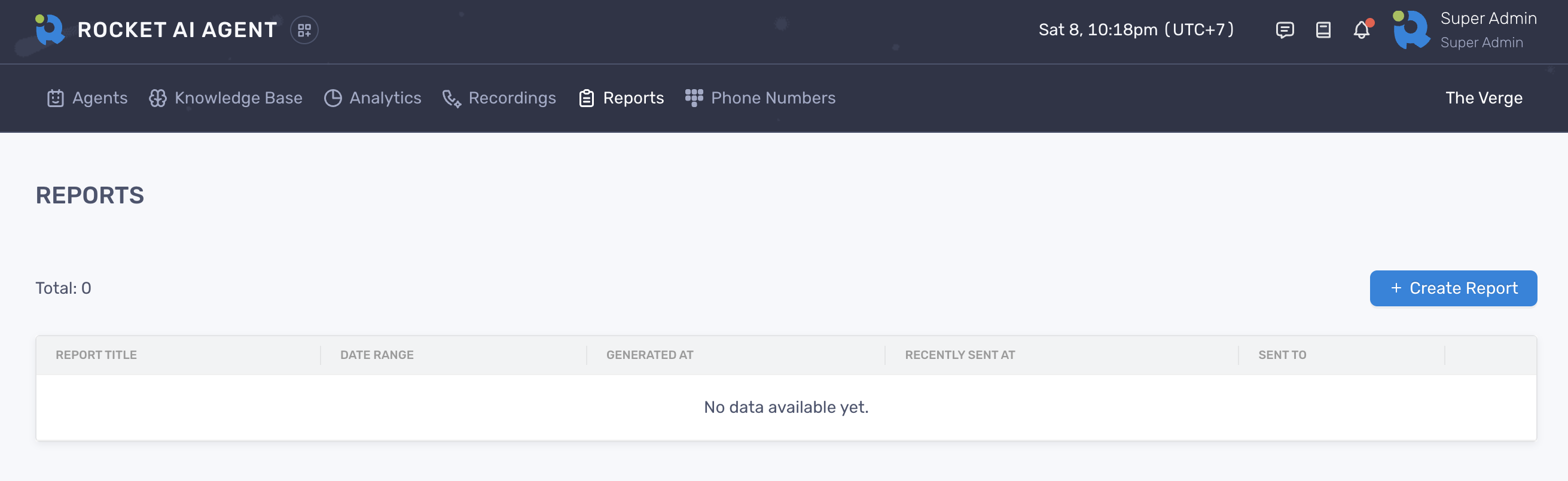
Generate a report
Section titled “Generate a report”- On the Reports tab, click “Generate Report” button
- On the modal, fill in all the required fields and select date range
- Click “Generate” to finish
- Click the report name to view it on a new tab
Share or email the report
Section titled “Share or email the report”- On the Reports tab, click the “Action” dropdown button
- Select Email Report from the dropdown menu
- Enter up to 5 email addresses on the field, separated by comma
- Click “Send” to finish
Edit a report
Section titled “Edit a report”- On the Reports tab, click the “Action” dropdown button
- Select “Edit Report” from the dropdown menu
- Edit any field you want to edit
- Click “Update” to finish
Delete a report
Section titled “Delete a report”- On the Reports tab, click the “Action” dropdown button
- Select “Delete Report” from the dropdown menu
- Click “Yes, delete it” on the confirmation modal to finish