

Managing Users
Access Users
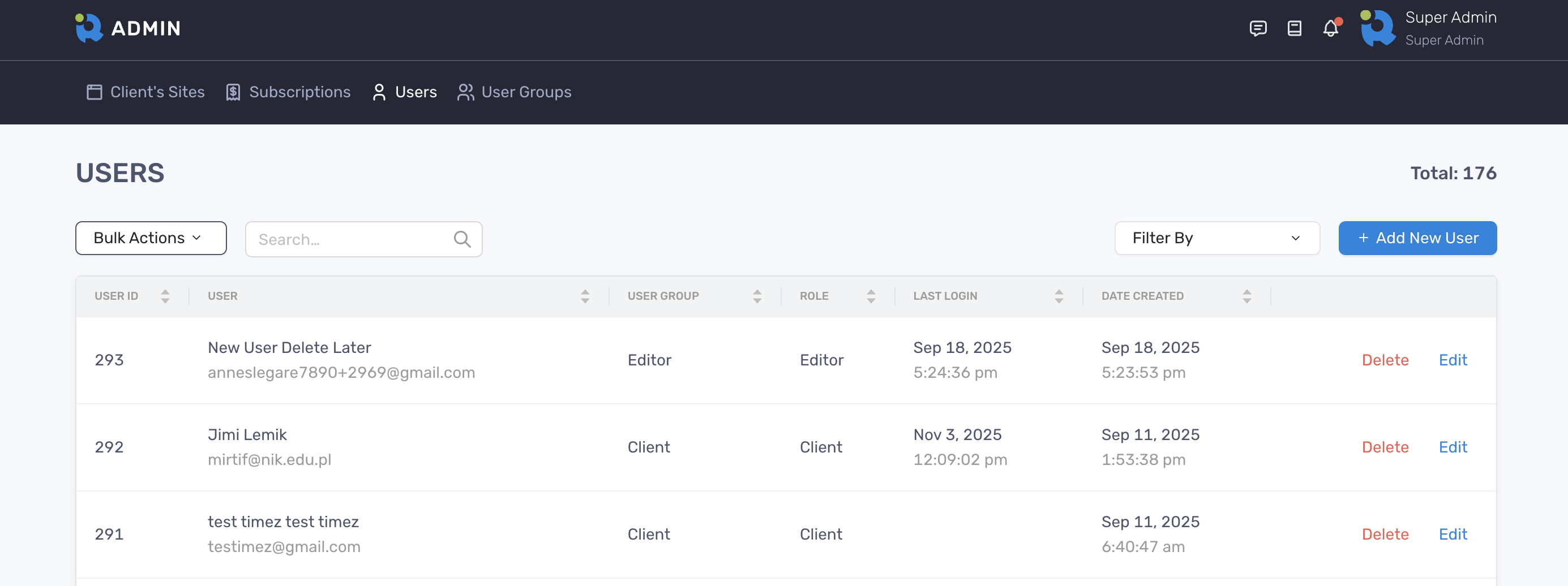
Section titled “Access Users”You can locate the Users on the top menu
Add a user
Section titled “Add a user”- On the Users page, click the “Add New User” on the right
- Enter values in required fields and click “Add User”
- Once successfully created, the new user is shown in the table
- A welcome email is sent to the registered email with temporary login credentials
- The new user can use these credentials to sign in Admin portal
- Once successfully signed in, the user is recommended to reset password for security purpose
Edit a user
Section titled “Edit a user”- On the Users page, locate the user that you want to edit and click the “Edit” button at the end of the row
- A panel slides in from the edge with all the details about that user
- Update the user’s info in the panel
- Click “Save Changes” to finish
Delete a user
Section titled “Delete a user”- On the Users page, locate the user you want to delete and click “Delete”
- A dialogue will pop up and ask for your confirmation
- Click “Delete” and the user is successfully deleted
By deleting a user group, the associated user group will remain intact.
Bulk move users to a user group
Section titled “Bulk move users to a user group”- On the Users page, click “Bulk Action” on the left and select Move users to a group
- Select the users that you want to move
- Click “Move [number] users”
- A dialogue will pop up and from there, select the new user group for the selected users
- Click “Move” to finish