

Managing Your User Profile
A user’s profile includes contact information, profile picture, and more.
Access User Profile
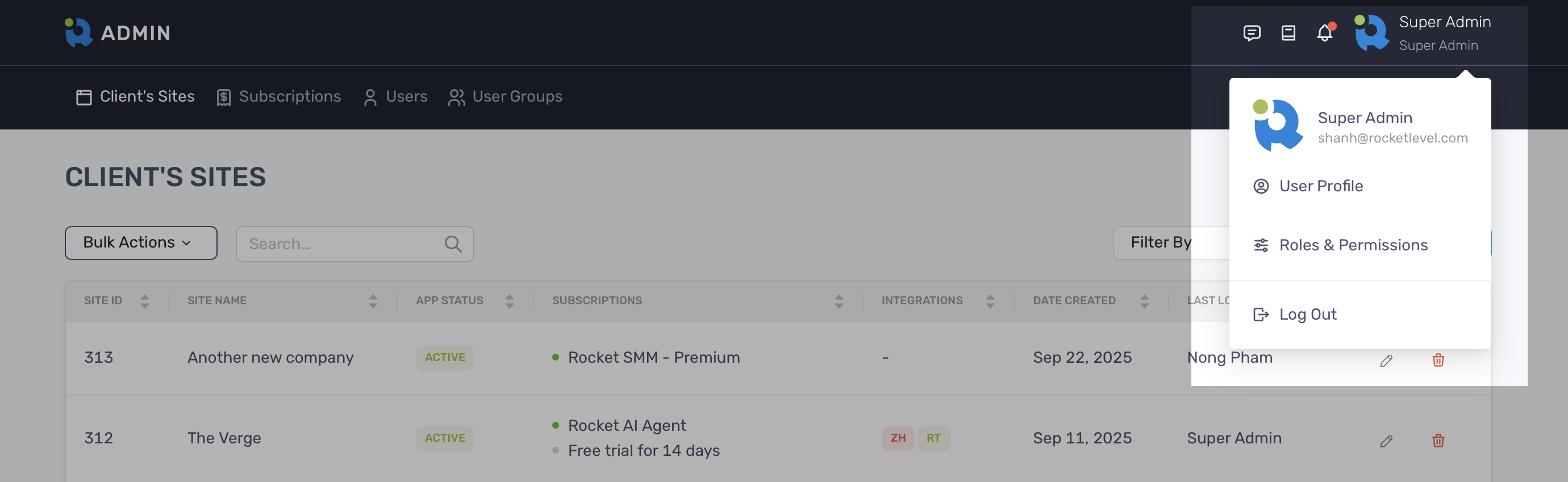
Section titled “Access User Profile”Start by locating the right top corner of Admin portal then selecting User Profile from the dropdown menu.
Edit your profile
Section titled “Edit your profile”Once you select the User Profile on the dropdown menu, you will see the User Profile panel. The panel includes 2 tabs: Overview and Services.
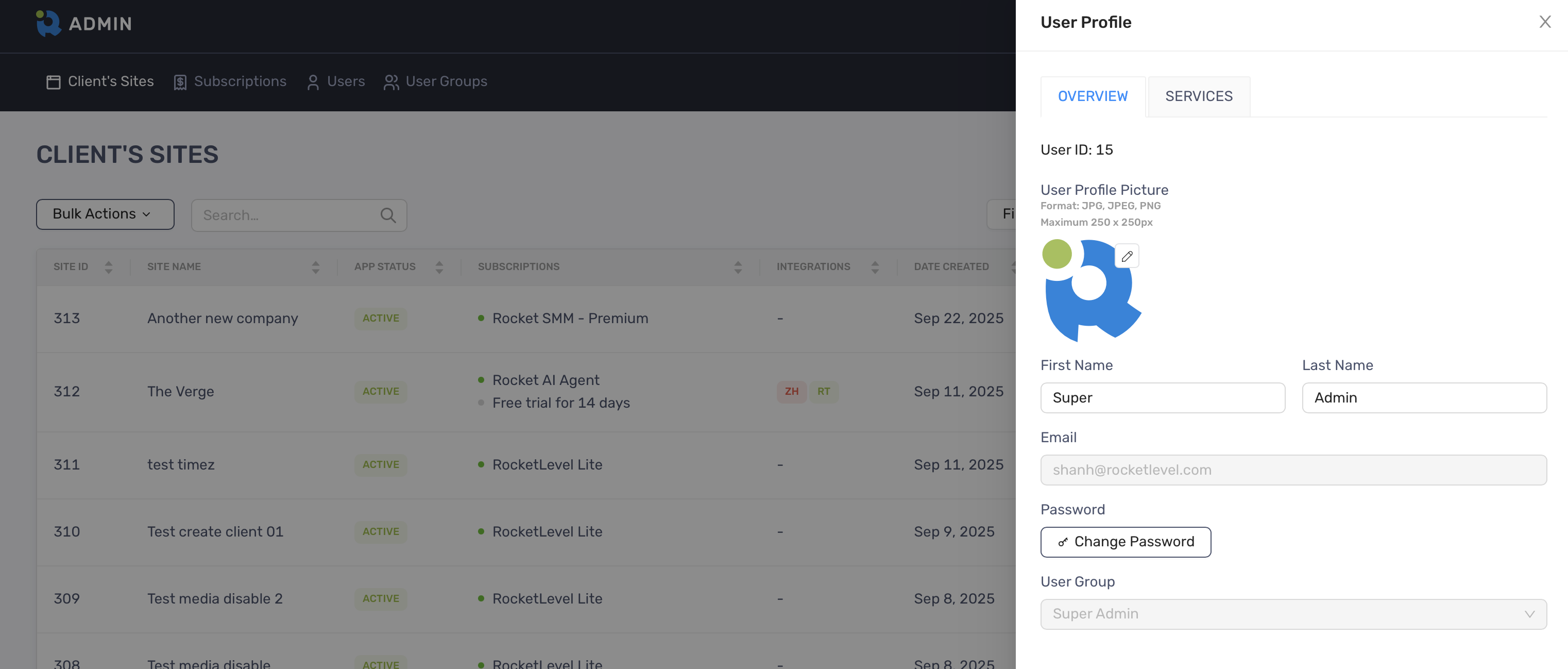
On the Overview, you can edit your profile picture, last name, first name and reset your password.
Reset your password
Section titled “Reset your password”- On Overview tab, click “Change Password”
- Enter the email address that will receive the Password Reset Code
- Enter the Password Reset Code and New Password
- Click “Confirm” to finish
- Log out and log back in with your new password
View the services
Section titled “View the services”On the Services tab of that panel, you can view which client’s sites you can access. You can go to that site by clicking the site name.