

Setting up Subscriptions & Overage Charges
How the AI Agent Subscription works
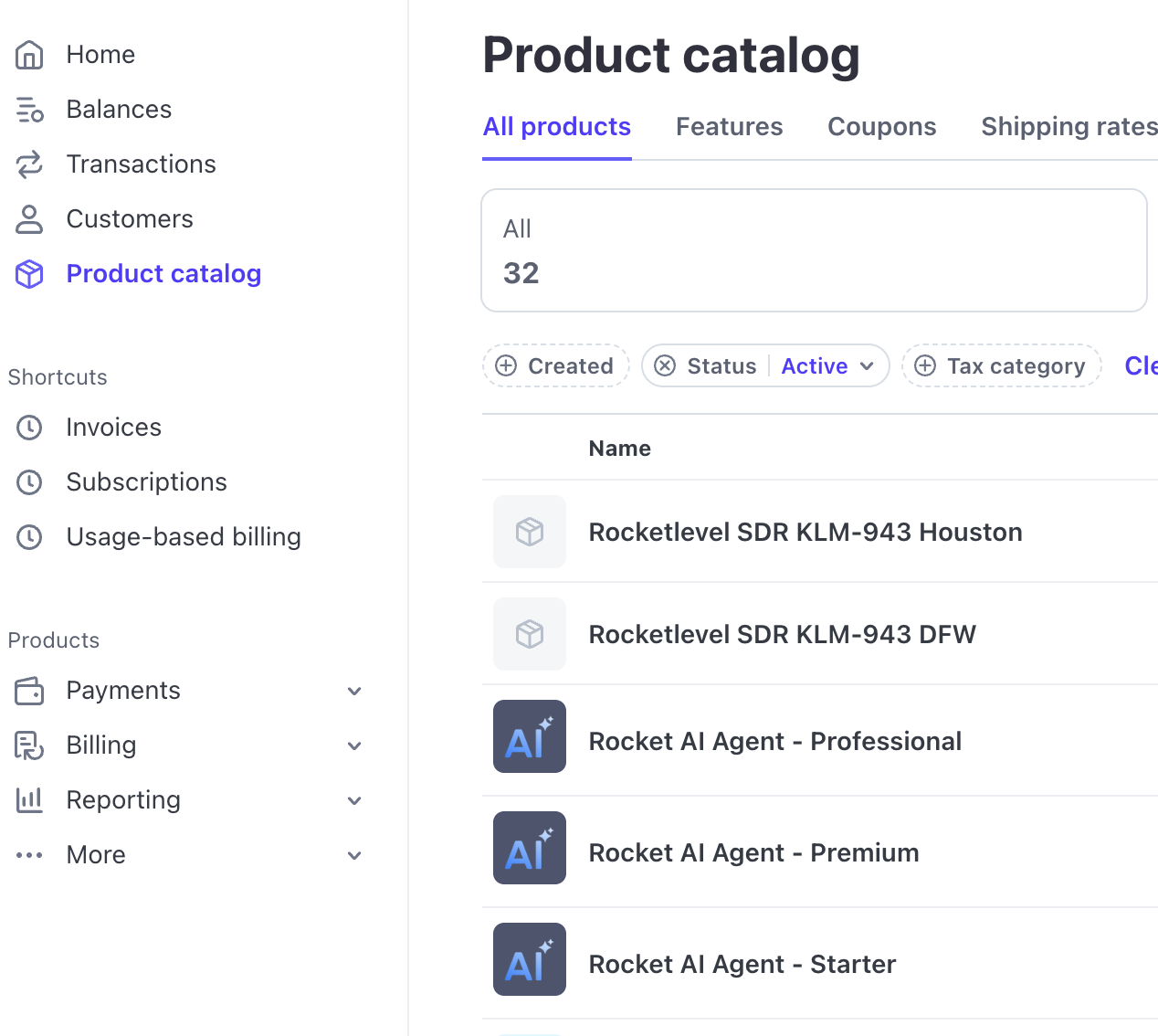
Section titled “How the AI Agent Subscription works”Currently, on Stripe, there are 3 products for Rocket AI Agent:
| Name | Flat Fee | Overage |
|---|---|---|
| Rocket AI Agent - Starter | $399 for 350 minutes | $5 per extra minute |
| Rocket AI Agent - Premium | $599 for 700 minutes | $5 per extra minute |
| Rocket AI Agent - Professional | $999 for 1400 minutes | $5 per extra minute |
They can be found on the Product catalog page:
Pricing models
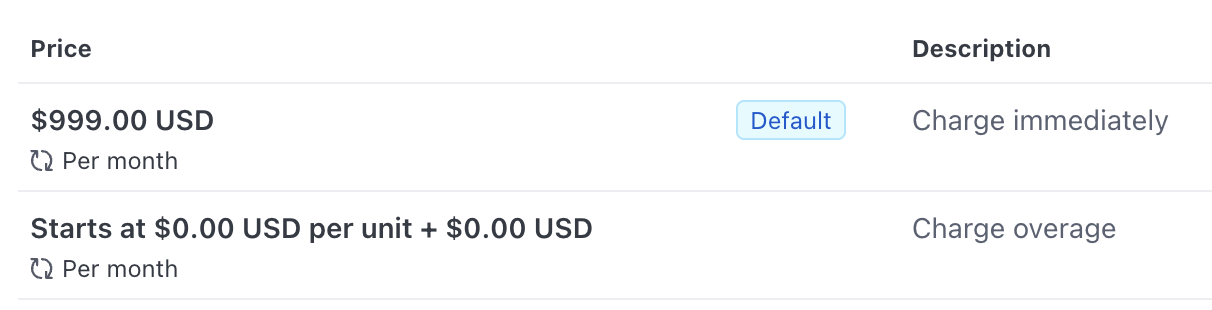
Section titled “Pricing models”Each product will have 2 prices:
- Flat fee: the fixed amount that will be charged immediately and monthly after the subscription is started
- Usage-based fee: the amount charged for overage. Reset every month.
Set up subscription and billing cycle
Section titled “Set up subscription and billing cycle”Let assume we need to set up account with the following requirements:
- Subscription: Rocket AI Agent - Professional
- Flat fee is charged immediately upon subscription creation
- Usage-based fee is charged for minute over 1400
- No roll over credits
- Billing cycle starts at 15th every month
Step 1: Create new subscription.
Section titled “Step 1: Create new subscription.”Add both prices to the Product section. Then click Create Subscription button.
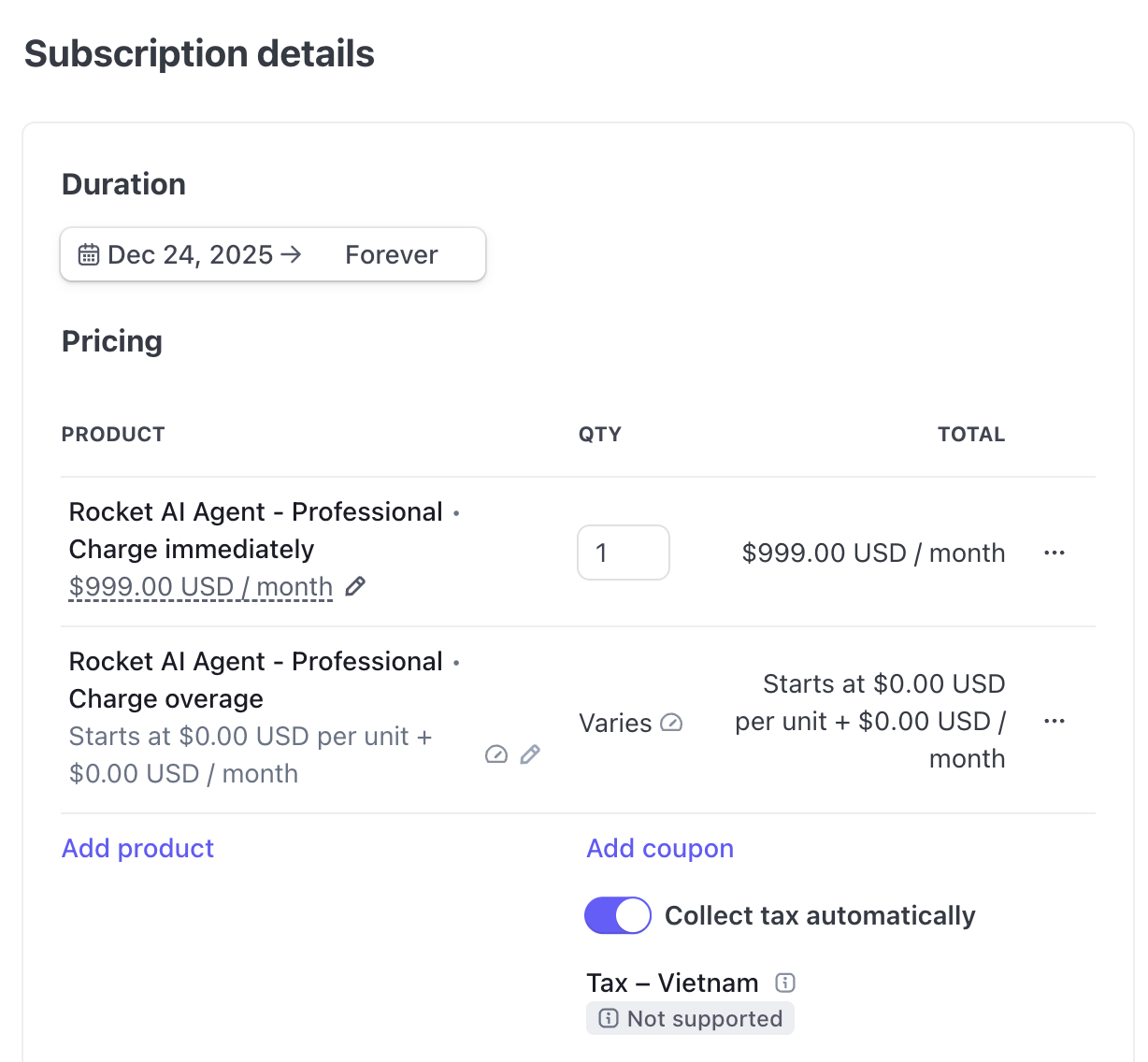
Step 2: Update the Duration
Section titled “Step 2: Update the Duration”Once the subscription is created, click to update it

Click the Duration field and change “Forever” to the 15th of next month
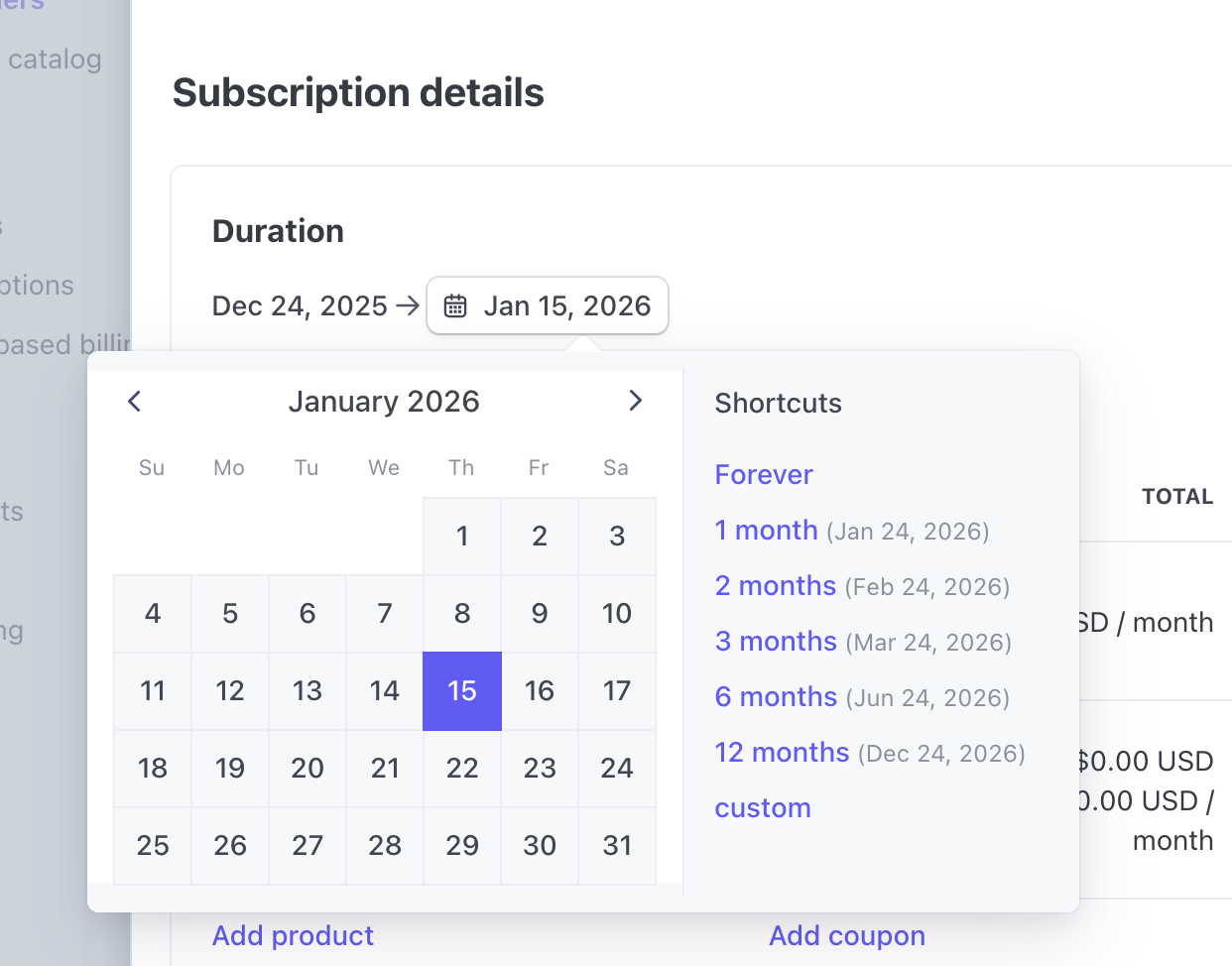
Step 3: Add phase
Section titled “Step 3: Add phase”This step will help set the next invoice to be finalized on 15th moving forward.
Still on the Update subscription screen, click Add phase button
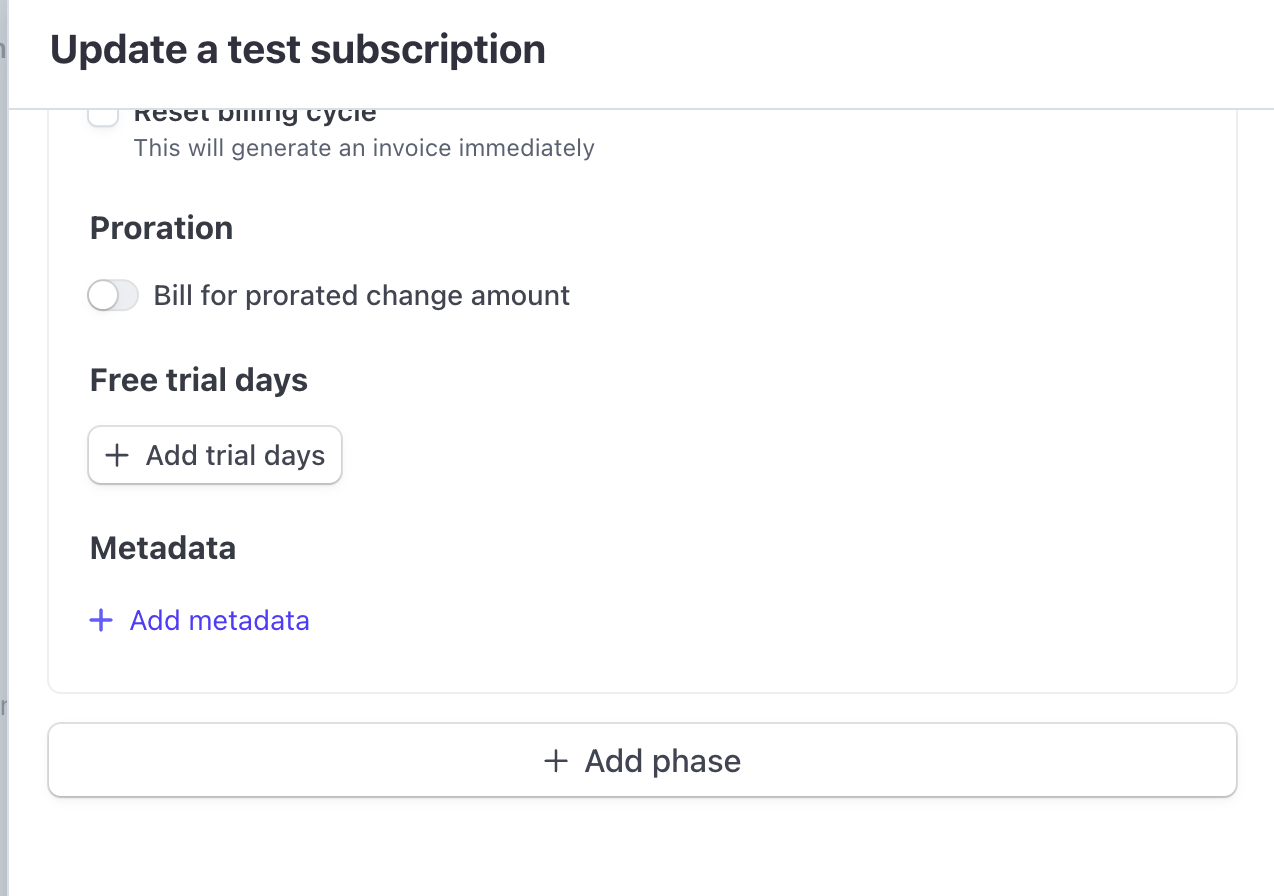
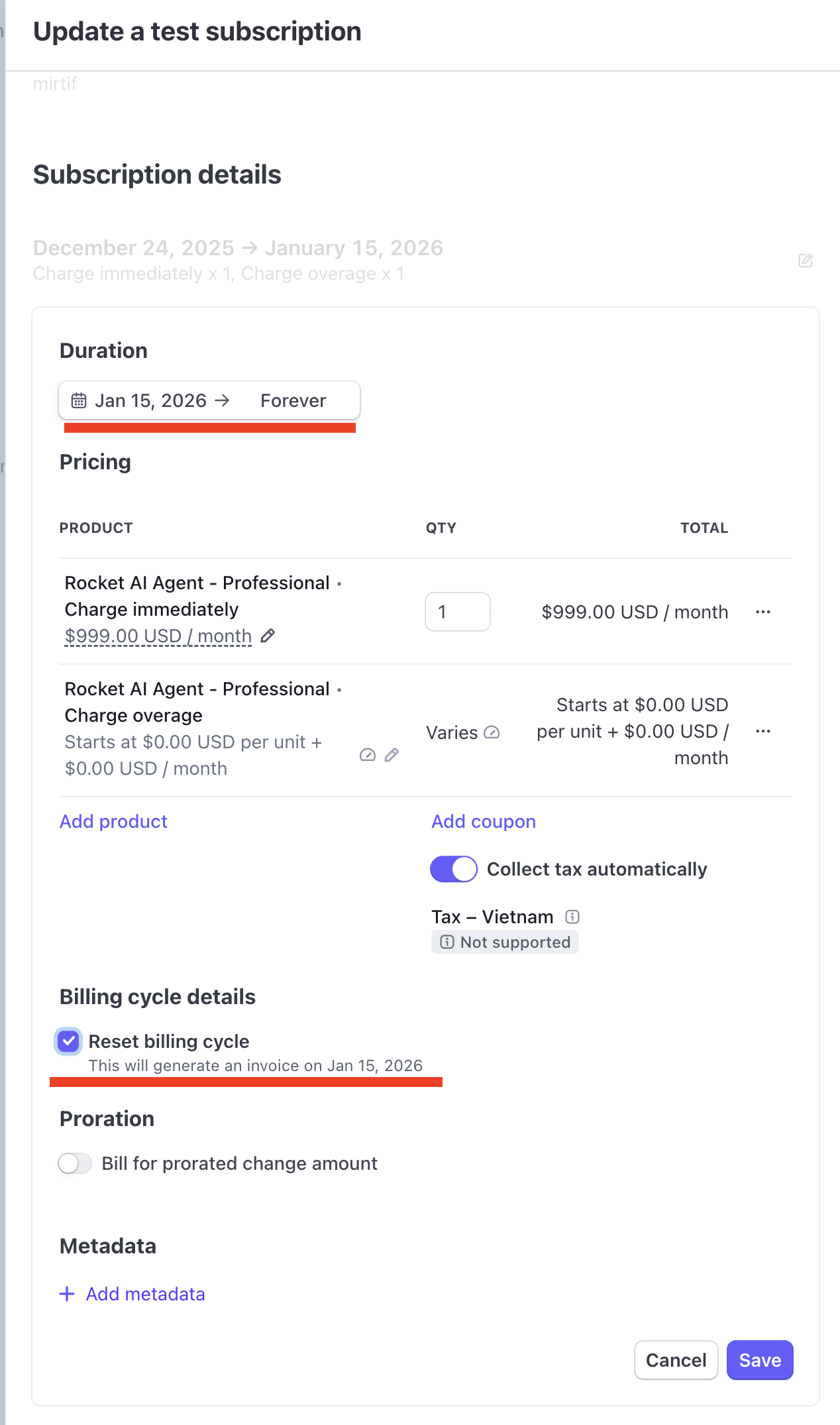
On the next phase, set the Duration as below and check the box Reset Billing cycle. Click Update Subscription to finish.
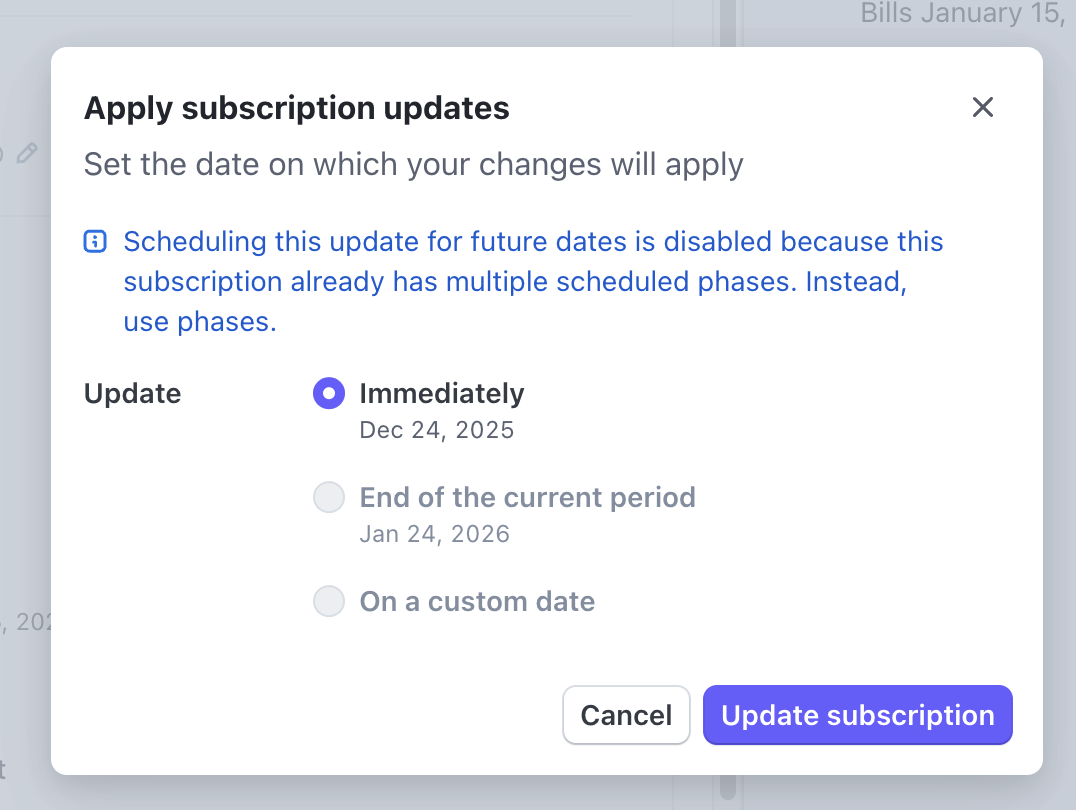
You’ll be prompted with the confirmation modal, select Immediately and click Update Subscription.
Step 4: Double-check
Section titled “Step 4: Double-check”Once the subscription is updated successfully, click it to open the detail page and see if the phases and billing cycles are displayed as expected.
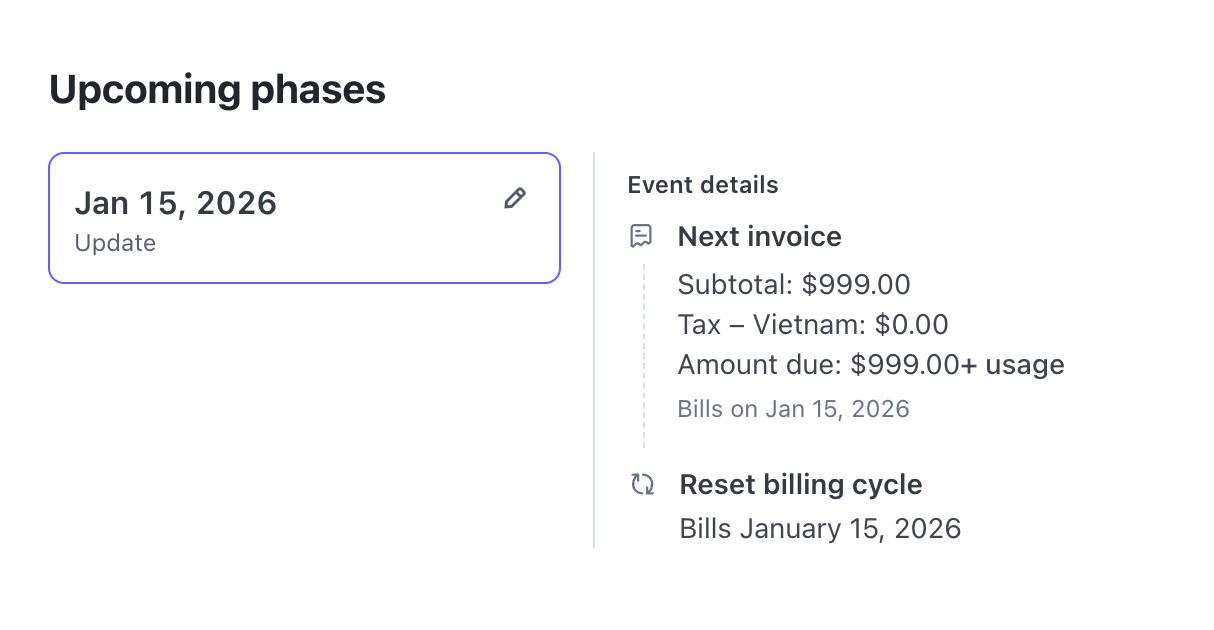
If everything is correct, move on to next step to link the agent and the meter for tracking usage.